Taxes
Create tax components and plans for use with suppliers, customers, or products in Aragro.
Use with AI
External services may not be able to read this preview. Use Copy for AI instead.
Availability: To use Tax plans, this feature must be enabled in your account and your role must have the corresponding permissions. If the option does not appear, contact Aragro support.
To add taxes to an expense or purchase order, follow these steps.
- Go to Tax components, or open the Tax components page in Aragro.
- Click “+ Create new,” fill in the required fields (marked with *), and enter the desired formula in the “Formula” field to calculate your tax. This field uses the same logic as Excel formulas. When you are done, click “Create.”
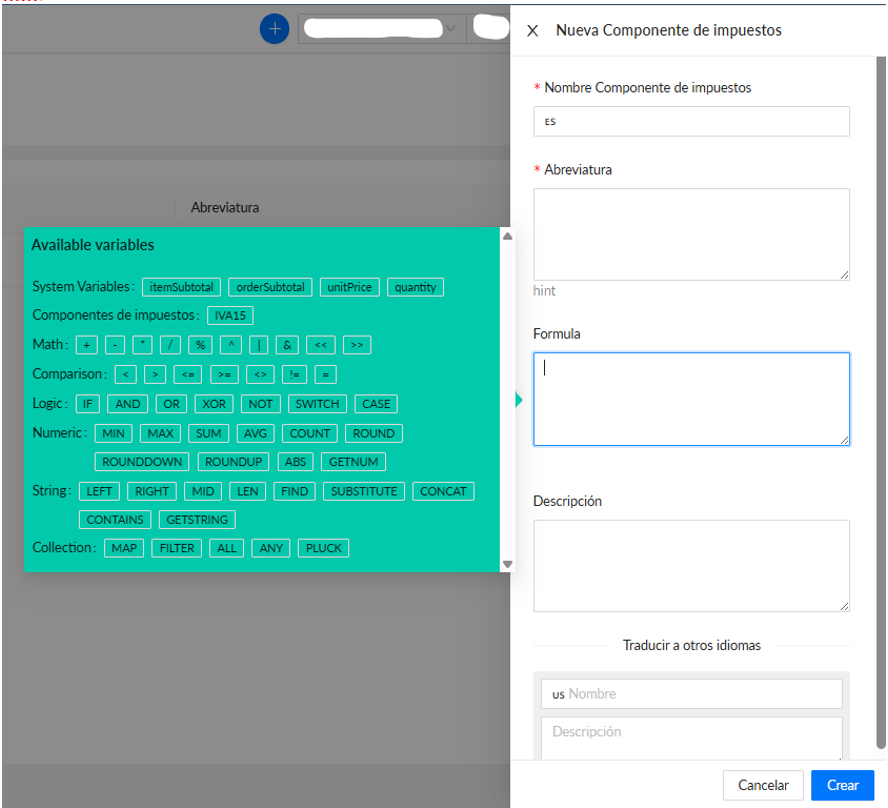
- Next, go to Tax plans, or open the Tax plans page in Aragro.
- Click “+ Create new” and fill in the required fields (*). You can apply the tax plan to suppliers, customers, or products. Choose the option that fits your needs.
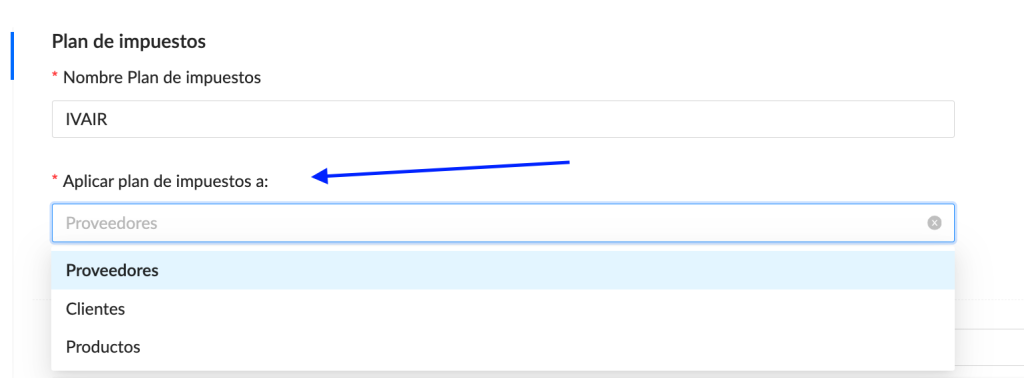
The dropdown will then show the tax component you created in step 2.
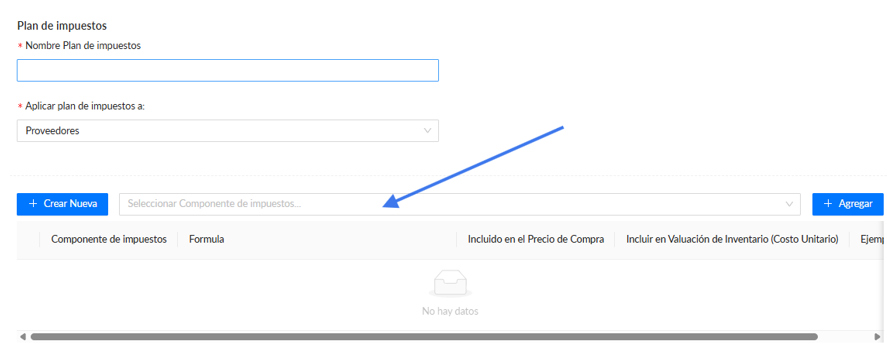
Your tax plan is ready. Next, follow the steps for the type of record to which you applied the plan.
Suppliers
Section titled “Suppliers”Follow these steps to add the tax plan to a supplier:
- Go to Counterparties, or open the Counterparties page in Aragro.
- Find and select the counterparty to which you want to apply the tax plan you just created. Click the pencil icon to edit that counterparty.

- In “Supplier config,” find the tax plan you created earlier in the dropdown, as shown below.
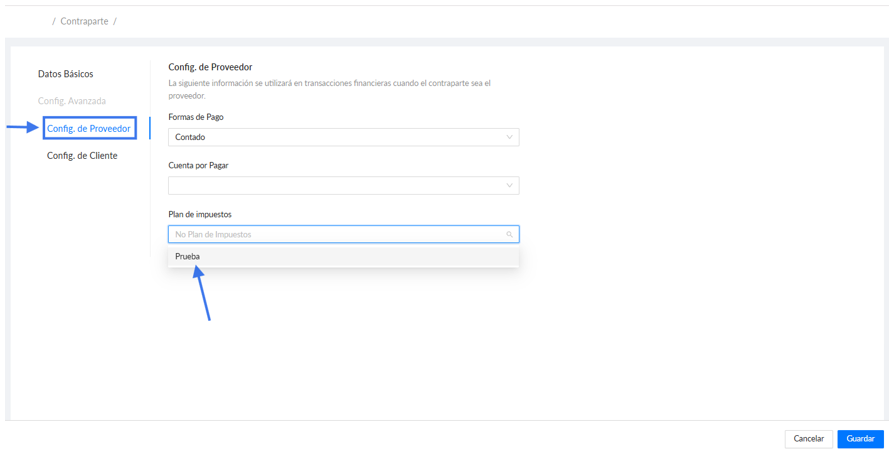
- Click Save.
Products
Section titled “Products”Follow these steps to add the tax plan to a particular product:
- Go to Products, or open the Products page in Aragro.
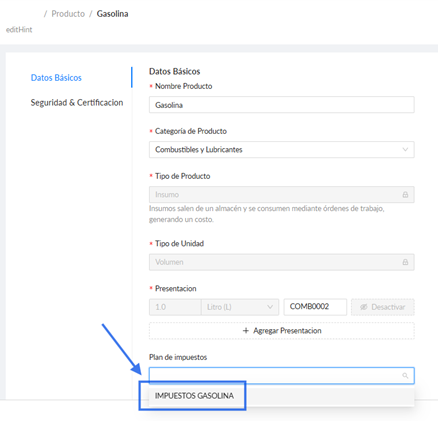
- Find and select the product to which you want to add the tax plan you just created. Click the pencil icon to edit the product.

- In the tax plan option, choose the plan you want to add to this product, then click Save.
When you buy or sell the product with the tax plan, Aragro will add this information. Here is an example:


If you have a question that this guide does not answer, contact us in the Aragro chat and we will be happy to help.
See also: Accounting setup: accounts, VAT, banks and journal entries.