Sales
Record sales of your agricultural products and review their inventory impact in Aragro.
Use with AI
External services may not be able to read this preview. Use Copy for AI instead.
Availability: In the standard configuration, these features are included starting with the Harvest plan. Access also depends on the features enabled in your account and on your role’s permissions. Compare plans.
The Sales module in Aragro helps you manage the sale of your agricultural products. This guide walks you through recording and monitoring sales.
Open the Sales module
Section titled “Open the Sales module”- In the left navigation panel, select Inventory.
- In the Inventory menu, click Sales to open the module.
Create a sale
Section titled “Create a sale”- In the Sales module, click “+ Create new” to start a transaction.
- Enter the sale details:
- Sale date: Enter the date of the transaction.
- Source warehouse: Select where the product will be taken from.
- Customer or counterparty: Select or enter the customer’s name.
- Sale currency: Select the currency for the transaction.
- Payment method: Choose a payment method.
- Products sold: Add the products and specify the quantity and price per unit.
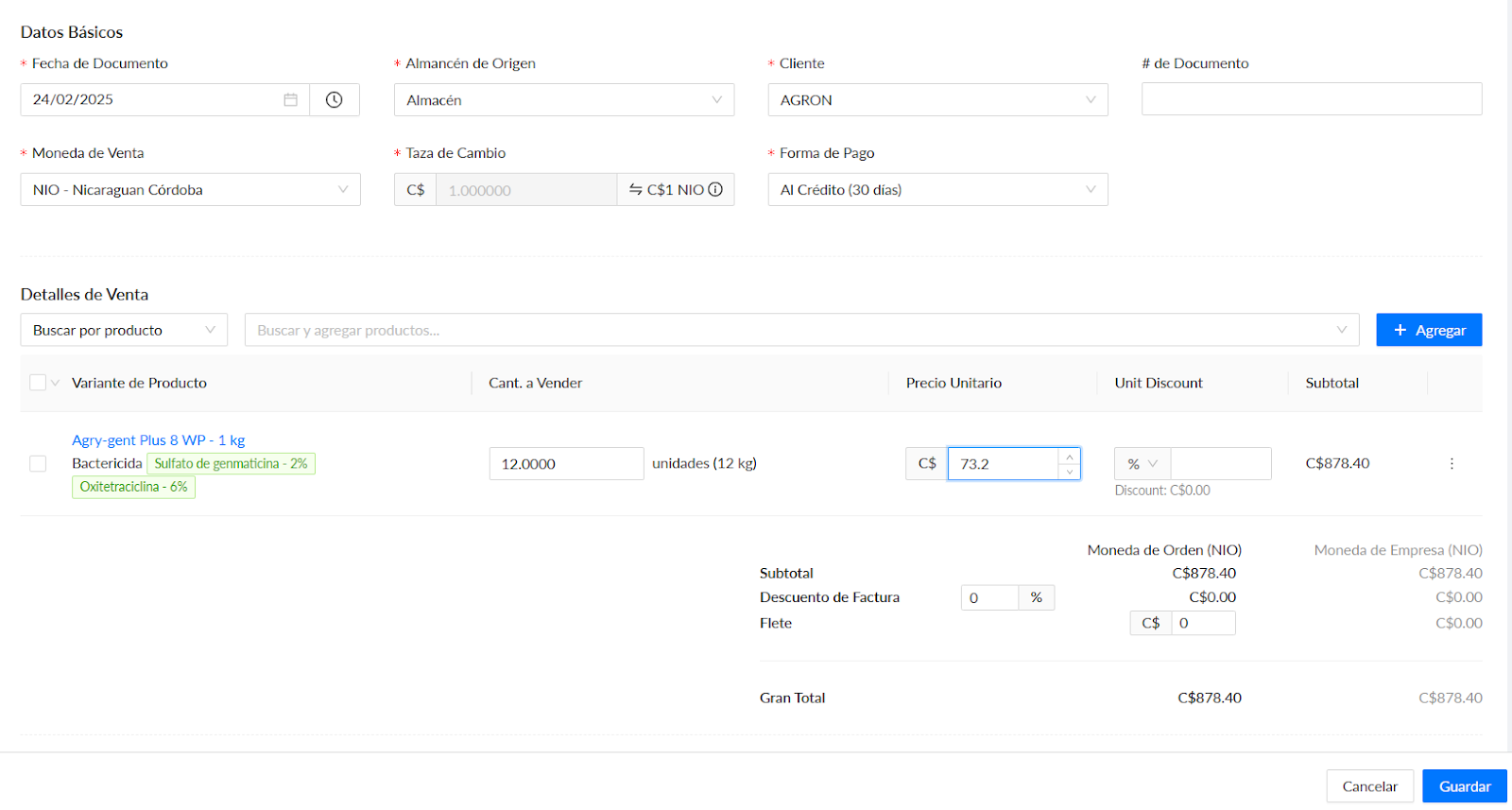
- After filling in all required fields, click Save to record the sale.
- If all the sale details are correct, click Complete sale. Otherwise, correct any errors before completing it.

Manage and track sales
Section titled “Manage and track sales”- Sales history: View a complete list of recorded transactions in the Sales module.
- Search and filters: Find specific sales using criteria such as customer, date, or product.
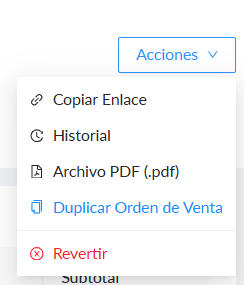
- Editing sales: A completed sale cannot be edited, but it can be reversed. Open the sale, select Actions in the upper-right corner, and choose Reverse.
Reports and analysis
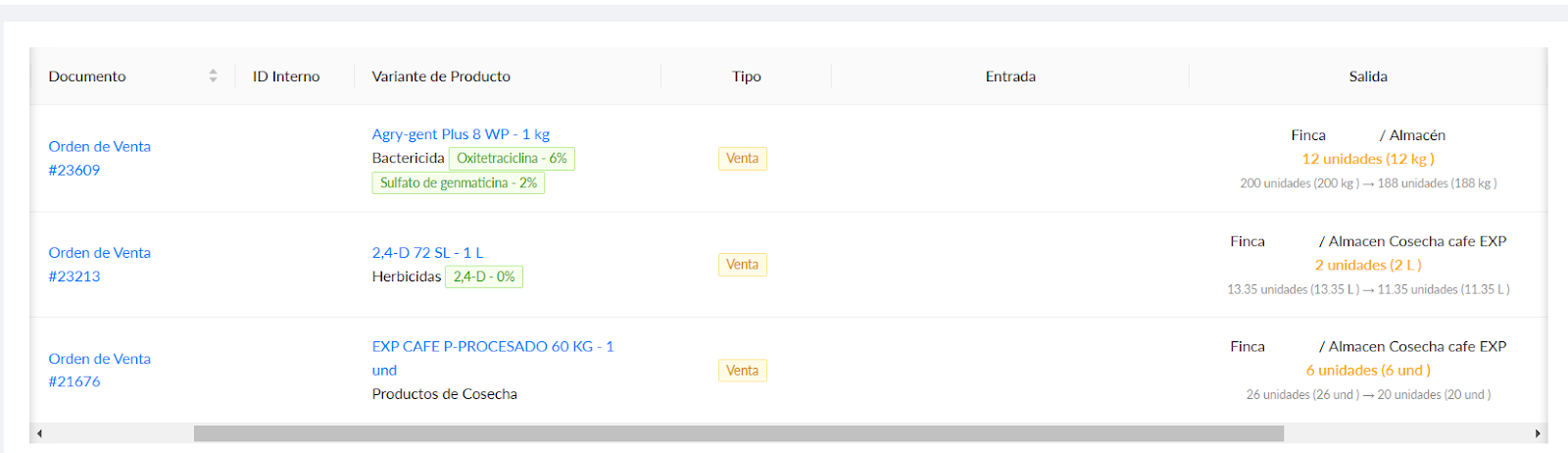
Section titled “Reports and analysis”Open the Inventory movements report in the Reports section, or go directly to the Inventory movements report.
This report shows details of transactions involving your inventory, including sales. Use the filters to view the information you need.
If you have a question this guide does not answer, contact us in the Aragro chat and we will be happy to help.
See also: From harvest to processing and sale.