# Metrics
> How to create performance metrics and use them in your Aragro activities.
Source: https://resources.aragro.com/en/metrics/
Language: en
Relative links and media resolve against the source URL.
> **Availability:** In the standard configuration, these features are included starting with the **Growth** plan. Access also depends on the features enabled in your account and on your role's permissions. [Compare plans](https://aragro.com/en/pricing).
Every crop has its own particularities, and we want to make sure you can see the progress of your activities, especially when they are measured in a specific way.
## What measuring progress means
In Aragro, measuring progress means recording the amount of work completed in a work order: for example, area covered during spraying, plants planted, or meters of road repaired.
In this module, you can create your own performance metrics for the company.
## Create a metric
From [the Metrics section in Aragro](https://app.aragro.com/agro/metrics), you can see all the preloaded metrics. If the metric you need is not on the list, you can create it.
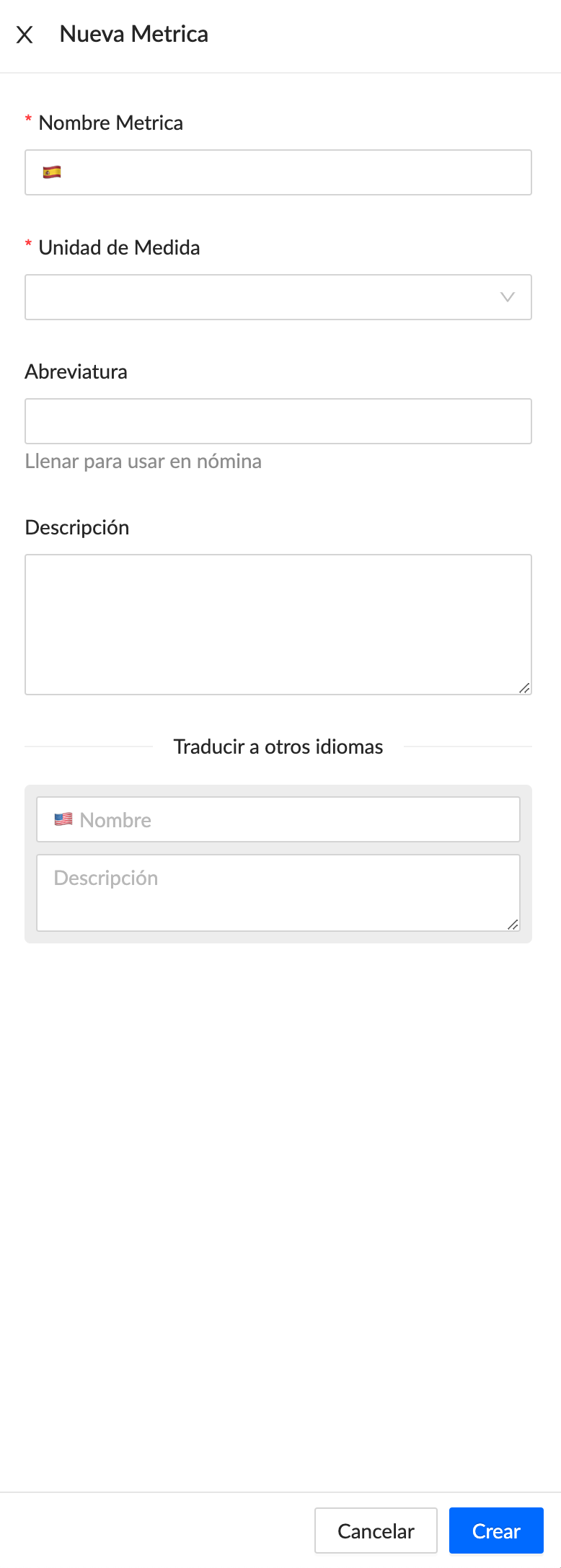
Use the **“+ Create new”** button. A form will open on the right side of the screen.
Form for creating a custom metric.
Don’t forget to refresh your browser page after saving the changes.
## Use the metric in an activity
Once the metric has been created, go to the activity where you want to measure progress.
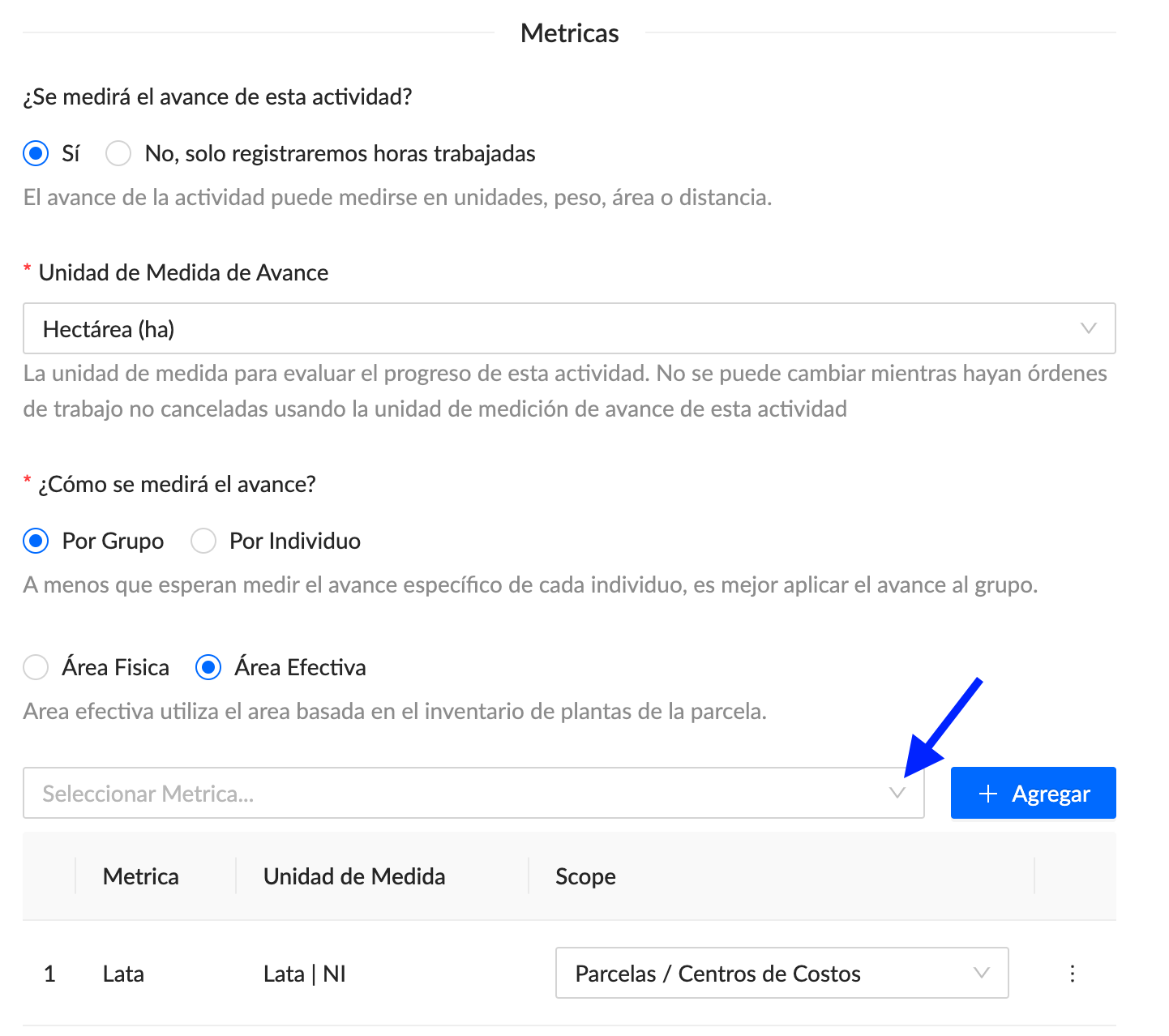
Inside the activity, edit the **Metrics** section. Select the unit for measuring progress and then choose the metric you need from the dropdown indicated by the blue arrow. Don’t forget to click **“+ Add”**.
Progress measurement settings inside an activity.
Once that’s done, save the activity changes in the bottom-right corner of the screen.
Next step
When you’re done, read the activities guide to connect the metric to your workflow.