﻿# Inventory adjustments

> Record and review inventory balance and cost adjustments.

Source: https://resources.aragro.com/en/inventory-adjustments/
Language: en

Relative links and media resolve against the source URL.

> **Availability:** In the standard configuration, these features are included starting with the **Growth** plan. Access also depends on the features enabled in your account and on your role's permissions. [Compare plans](https://aragro.com/en/pricing).

In Inventory **Adjustments**, you can change the balance of each product variant, whether it has increased or decreased.

Unlike **Reconciliations**, an adjustment requires you to specify a reason. For example, you can indicate that the balance changed because something was **Lost/Stolen**, **Expired/Damaged**, **Found**, or for another reason.

## Steps

Follow these steps to adjust your inventory.

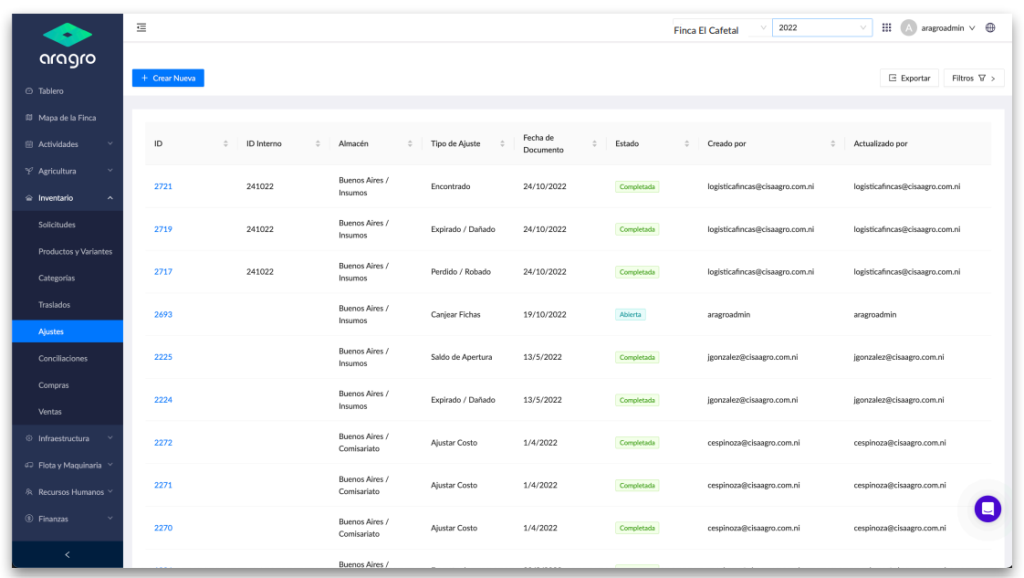
1. The **Transfers** option is in the Inventory module in the left sidebar or in the general menu at the upper right.

<figure><img src="/wp-content/uploads/sites/2/2025/02/image-20-1024x578.png" alt="Adjustments selected under Inventory; the list shows each record's warehouse, adjustment type, and status." width="1024" height="578" srcset="/wp-content/uploads/sites/2/2025/02/image-20-1024x578.png 1024w, /wp-content/uploads/sites/2/2025/02/image-20-300x169.png 300w, /wp-content/uploads/sites/2/2025/02/image-20-768x433.png 768w, /wp-content/uploads/sites/2/2025/02/image-20.png 1122w" sizes="(max-width: 1024px) 100vw, 1024px" loading="lazy" decoding="async" /></figure>

The initial view shows the list of recorded adjustments: [https://app.aragro.com/inventory/adjustments](https://app.aragro.com/inventory/adjustments).

- **Warehouse** indicates the warehouse affected by the adjustment.
- **Adjustment types** include reasons such as found, lost, expired, damaged, cost adjustment, token exchange, and opening balance.
- **Status** can be **Open** or **Completed**.

You can see who created the adjustment and who last updated the record.

2. In the module, you can create a new adjustment, export, and filter.

### <span data-pagefind-ignore="index">a)</span> Create new

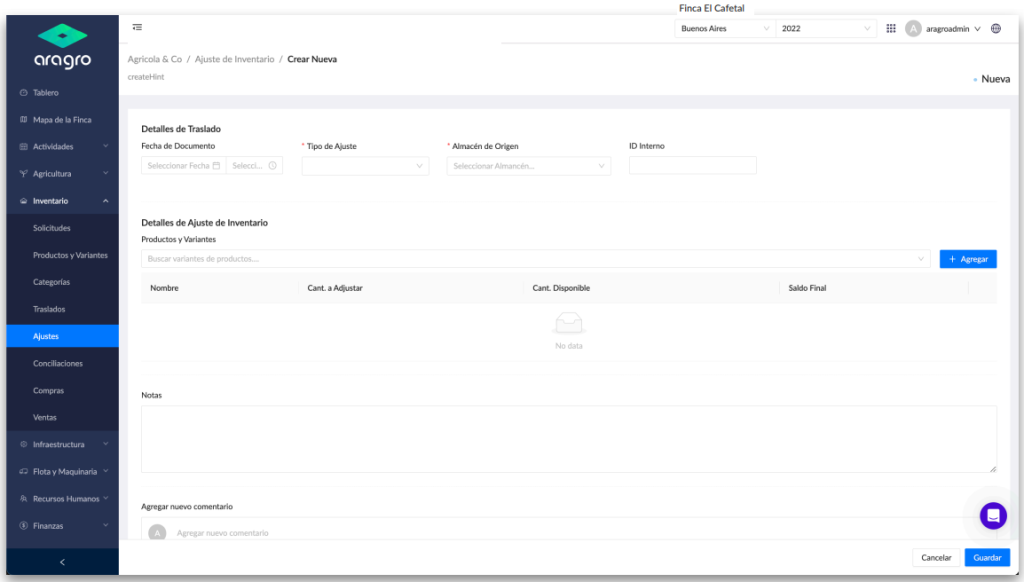
Click the blue **“+ Create new”** button to open a screen where you can complete a form with the basic information.

<figure><img src="/wp-content/uploads/sites/2/2025/02/image-21-1024x582.png" alt="New adjustment form with general details, product and variant search, a quantities table, and Save." width="1024" height="582" srcset="/wp-content/uploads/sites/2/2025/02/image-21-1024x582.png 1024w, /wp-content/uploads/sites/2/2025/02/image-21-300x171.png 300w, /wp-content/uploads/sites/2/2025/02/image-21-768x437.png 768w, /wp-content/uploads/sites/2/2025/02/image-21.png 1154w" sizes="(max-width: 1024px) 100vw, 1024px" loading="lazy" decoding="async" /></figure>

> *Note: Fields marked with an asterisk (\*) are required to continue to the next step.*

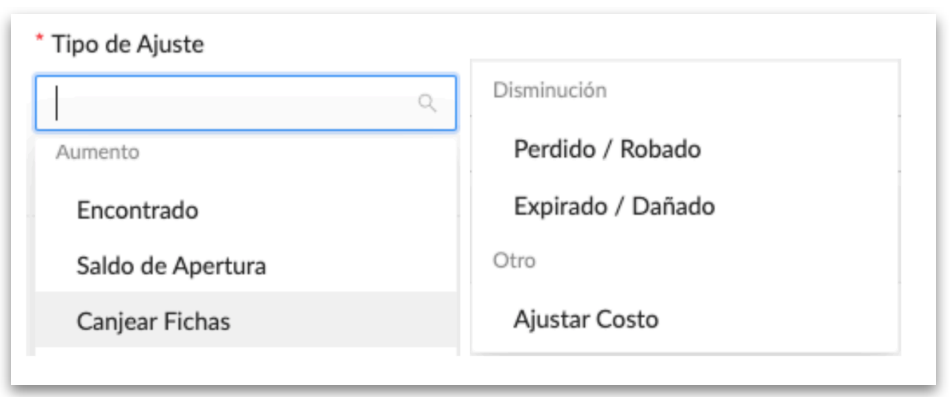
The **Document date** is the current date when you create the adjustment. Select the **Adjustment type** (found, lost, expired, damaged, cost adjustment, token exchange, or opening balance). The **Source warehouse** is the warehouse that will be affected.

<figure><img src="/wp-content/uploads/sites/2/2025/02/image-22-1024x134.png" alt="Adjustment details: document date, adjustment type, source warehouse, and internal ID; type and warehouse are marked with asterisks." width="1024" height="134" srcset="/wp-content/uploads/sites/2/2025/02/image-22-1024x134.png 1024w, /wp-content/uploads/sites/2/2025/02/image-22-300x39.png 300w, /wp-content/uploads/sites/2/2025/02/image-22-768x100.png 768w, /wp-content/uploads/sites/2/2025/02/image-22.png 1430w" sizes="(max-width: 1024px) 100vw, 1024px" loading="lazy" decoding="async" /></figure>

**Increase** adjustments increase the stock quantity of the products added. **Decrease** adjustments reduce their stock quantity. **Cost adjustment** changes the costs and stock of the products added.

<figure><img src="/wp-content/uploads/sites/2/2025/02/image-23.png" alt="Adjustment types grouped under Increase, Decrease, and Other: Found, Opening balance, Token exchange, Lost or stolen, Expired or damaged, and Adjust cost." width="951" height="397" srcset="/wp-content/uploads/sites/2/2025/02/image-23.png 951w, /wp-content/uploads/sites/2/2025/02/image-23-300x125.png 300w, /wp-content/uploads/sites/2/2025/02/image-23-768x321.png 768w" sizes="(max-width: 951px) 100vw, 951px" loading="lazy" decoding="async" /></figure>

> *Note: Fields marked with an asterisk (\*) are required to continue to the next step.*

Increase and decrease adjustments have an **Increase quantity** field enabled.

<figure><img src="/wp-content/uploads/sites/2/2025/02/image-24-1024x284.png" alt="Adjust cost selected, with fields for the product's quantity to adjust and new unit cost." width="1024" height="284" srcset="/wp-content/uploads/sites/2/2025/02/image-24-1024x284.png 1024w, /wp-content/uploads/sites/2/2025/02/image-24-300x83.png 300w, /wp-content/uploads/sites/2/2025/02/image-24-768x213.png 768w, /wp-content/uploads/sites/2/2025/02/image-24.png 1399w" sizes="(max-width: 1024px) 100vw, 1024px" loading="lazy" decoding="async" /></figure>

> *Note: Fields marked with an asterisk (\*) are required to continue to the next step.*

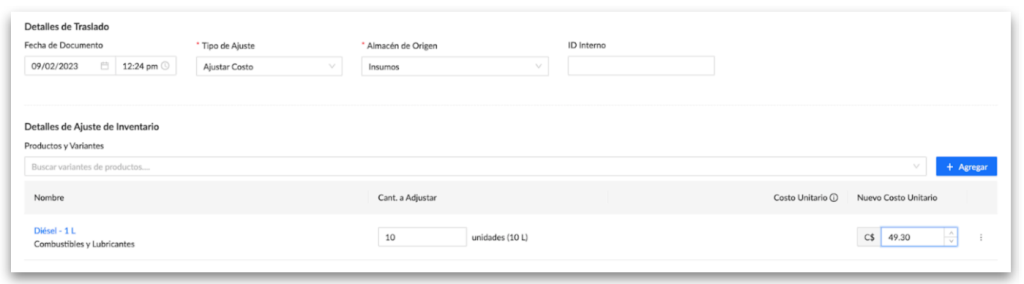
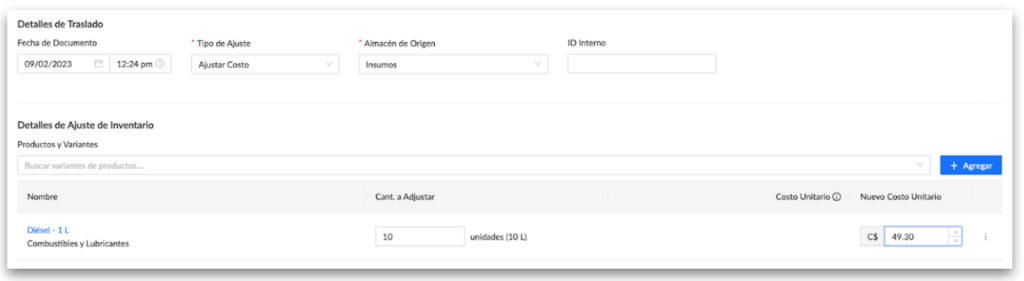
A cost adjustment has the **Cost** and **Quantity** fields enabled.

<figure><img src="/wp-content/uploads/sites/2/2025/02/image-25-1024x281.png" alt="Product cost adjustment with editable quantity to adjust and new unit cost." width="1024" height="281" srcset="/wp-content/uploads/sites/2/2025/02/image-25-1024x281.png 1024w, /wp-content/uploads/sites/2/2025/02/image-25-300x82.png 300w, /wp-content/uploads/sites/2/2025/02/image-25-768x211.png 768w, /wp-content/uploads/sites/2/2025/02/image-25.png 1408w" sizes="(max-width: 1024px) 100vw, 1024px" loading="lazy" decoding="async" /></figure>

> *Note: Fields marked with an asterisk (\*) are required to continue to the next step.*

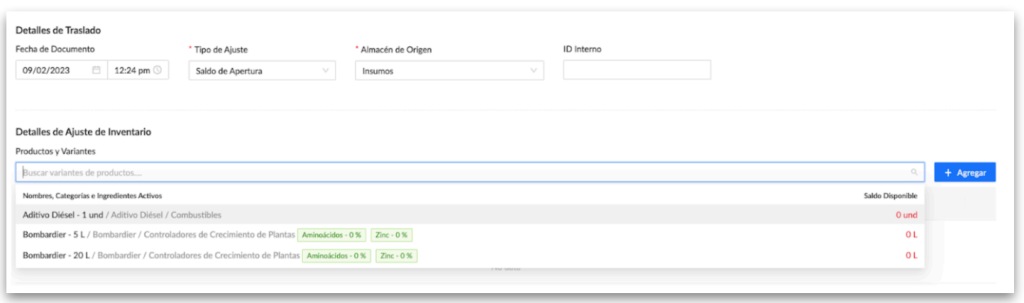
For an **Opening balance** adjustment, only products with 0 stock in inventory are loaded. You can add quantities and costs. This adjustment type is used to enter stock and costs for multiple new products.

<figure><img src="/wp-content/uploads/sites/2/2025/02/image-26-1024x303.png" alt="Opening balance selected and variant search open, with available balances at zero." width="1024" height="303" srcset="/wp-content/uploads/sites/2/2025/02/image-26-1024x303.png 1024w, /wp-content/uploads/sites/2/2025/02/image-26-300x89.png 300w, /wp-content/uploads/sites/2/2025/02/image-26-768x227.png 768w, /wp-content/uploads/sites/2/2025/02/image-26.png 1443w" sizes="(max-width: 1024px) 100vw, 1024px" loading="lazy" decoding="async" /></figure>

> *Note: Fields marked with an asterisk (\*) are required to continue to the next step.*

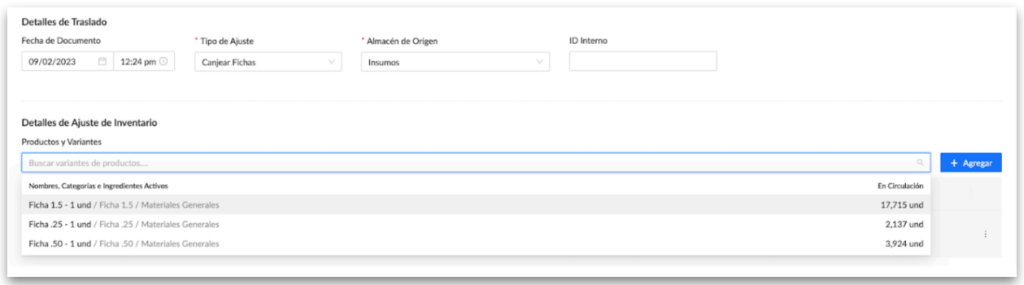
Some farms use tokens as payment. Each token has a value in **“lata cosechadas”** (this can be any unit of measure) representing the value harvested. At some point, these tokens are exchanged for benefits.

To track tokens in circulation and in stock, adjustments are made periodically to enter tokens that have returned to inventory.

<figure><img src="/wp-content/uploads/sites/2/2025/02/image-27-1024x285.png" alt="Token exchange selected; the search shows token variants and their quantities in circulation." width="1024" height="285" srcset="/wp-content/uploads/sites/2/2025/02/image-27-1024x285.png 1024w, /wp-content/uploads/sites/2/2025/02/image-27-300x83.png 300w, /wp-content/uploads/sites/2/2025/02/image-27-768x214.png 768w, /wp-content/uploads/sites/2/2025/02/image-27.png 1259w" sizes="(max-width: 1024px) 100vw, 1024px" loading="lazy" decoding="async" /></figure>

There is an optional Comments section where you can add comments and tag users of the system.

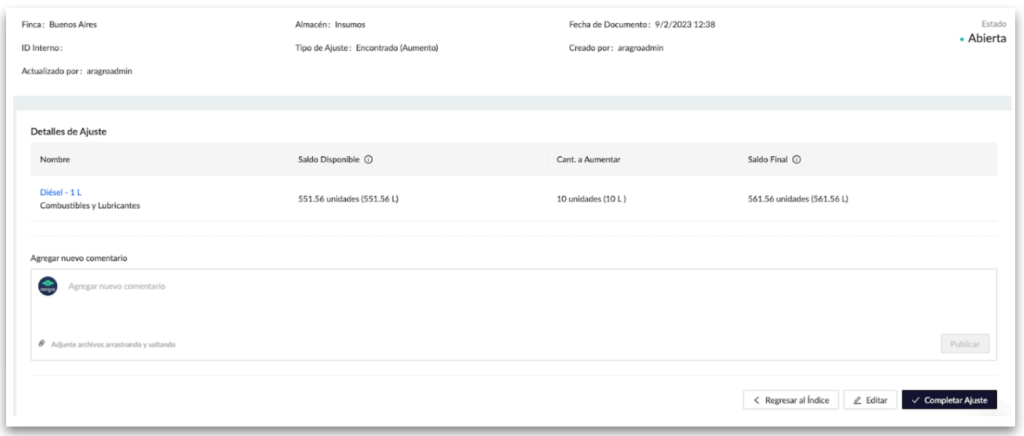
After entering the information, save the adjustment. Aragro will take you to a details page where you can review the transaction. At this point, you can edit the transfer by removing, adding, or changing quantities.

If you are sure the transaction is correct, click **“Complete adjustment.”** The transaction is executed when you complete it.

<figure><img src="/wp-content/uploads/sites/2/2025/02/image-28-1024x436.png" alt="Details of an open adjustment with available balance, increase quantity, and final balance; Edit and Complete adjustment are at the bottom." width="1024" height="436" srcset="/wp-content/uploads/sites/2/2025/02/image-28-1024x436.png 1024w, /wp-content/uploads/sites/2/2025/02/image-28-300x128.png 300w, /wp-content/uploads/sites/2/2025/02/image-28-768x327.png 768w, /wp-content/uploads/sites/2/2025/02/image-28.png 1510w" sizes="(max-width: 1024px) 100vw, 1024px" loading="lazy" decoding="async" /></figure>

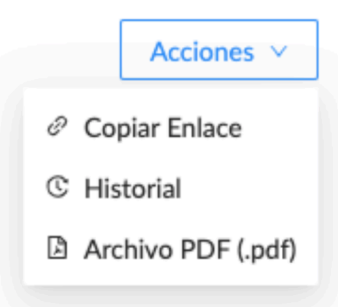
In adjustments, the **Actions** button has options to copy the adjustment URL/link to share it, view the adjustment change history, and export it as a PDF.

<figure><img src="/wp-content/uploads/sites/2/2025/02/image-29.png" alt="" width="338" height="307" srcset="/wp-content/uploads/sites/2/2025/02/image-29.png 338w, /wp-content/uploads/sites/2/2025/02/image-29-300x272.png 300w" sizes="(max-width: 338px) 100vw, 338px" loading="lazy" decoding="async" /></figure>

### <span data-pagefind-ignore="index">b)</span> Edit a record

To edit, select the record in the list. A side menu appears on the right, with a pencil icon at the upper right.

Editing activates all fields available for changes, including date, warehouses, and product list.

### <span data-pagefind-ignore="index">c)</span> Export

You can export the list of employees in two formats: Excel (.xlsx) and comma-separated (.csv).

### <span data-pagefind-ignore="index">d)</span> Filters

You can filter by nearly every column in the list, including the option at the end to show deleted records.

If you have a question this guide does not answer, contact us in the Aragro chat and we will be happy to help.