# Input cost
> Record and manage costs for the inputs used on your farm.
Source: https://resources.aragro.com/en/input-cost/
Language: en
Relative links and media resolve against the source URL.
> **Availability:** This cost view is used when your account does not have inventory control enabled. If you use inventory, see the corresponding [reports](/en/reports/).
The **Input cost** module in Aragro is an essential tool for managing and tracking the costs associated with the inputs used on your farm.
## Open the Input cost module
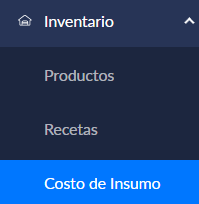
1. In the left sidebar, select **Inventory**.
2. In the **Inventory** menu, click **Input cost** to open the module.
## Record a new input cost
1. **Start a record:** In the Input cost module, click **“+ Create new”** to add a cost record.
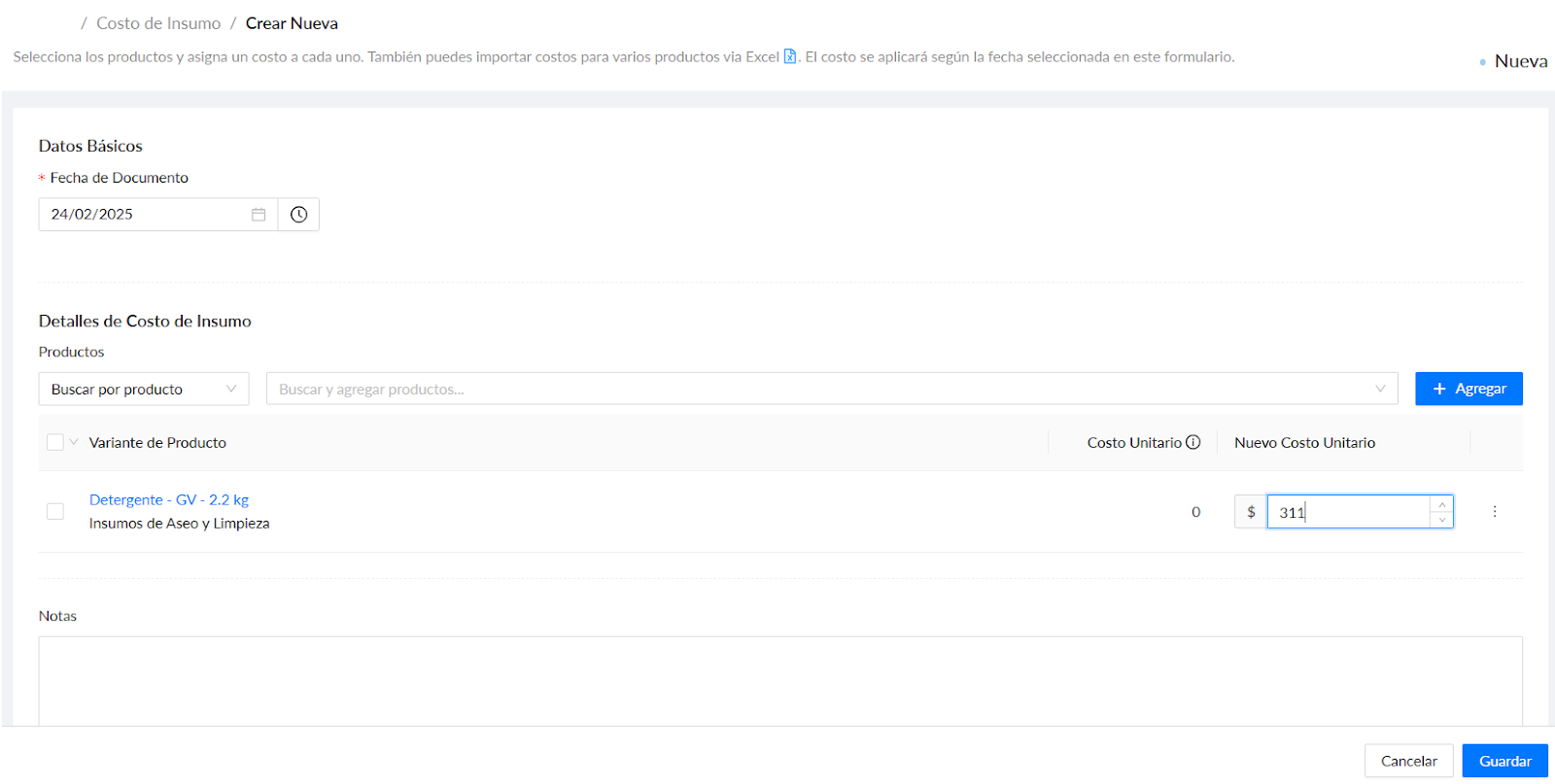
2. **Fill in the fields:**
- **Record date:** Enter the date when you are recording the cost.
- **Input name:** Select the input to which the cost applies.
- **Unit cost:** Enter the cost per unit of the input.
- **Notes:** Add any other relevant details.
3. **Save the record:** After completing all required fields, click **Save** to add the cost to the system.
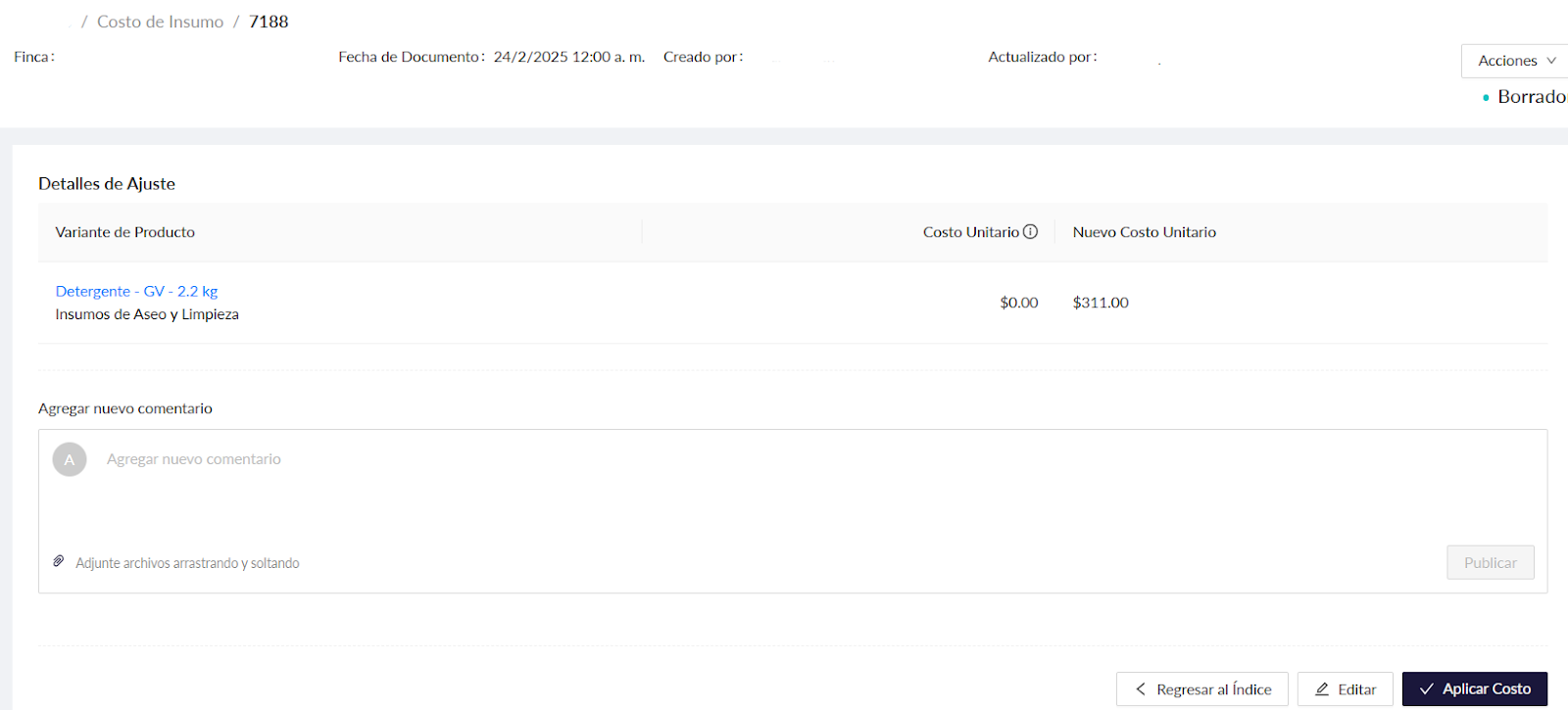
4. Finally, click **Apply cost**.
## Manage existing input costs
- **View costs:** The Input cost module shows a complete list of records, including the input name, record date, unit cost, and supplier.
- **Edit costs:** Once a cost has been assigned in a transaction and that transaction is complete, you cannot edit the cost because Aragro is a transactional system. However, you can **reverse** the transaction and enter the cost assignment again with the correct information.
Open the transaction by clicking its ID in blue. Then select **Actions**; the **Reverse** option will appear in red.
Managing input costs appropriately in Aragro helps you keep close track of farm expenses, optimize resources, and improve the profitability of your agricultural operations.
 ## Record a new input cost
1. **Start a record:** In the Input cost module, click **“+ Create new”** to add a cost record.