# Employee guide
> Set up job positions, employees, and groups for work orders.
Source: https://resources.aragro.com/en/employees-guide/
Language: en
Relative links and media resolve against the source URL.
> **Availability:** In the standard configuration, these features are included starting with the **Growth** plan. Access also depends on the features enabled in your account and on your role's permissions. [Compare plans](https://aragro.com/en/pricing).
In Aragro, you can easily track each employee’s attendance, work performed, and earned pay through work orders. Each day, you can see which activity each employee worked on, whether they were absent and why, how much work they completed, and each employee’s daily pay.
This guide explains how to:
1. Set up job positions for employees on your farm.
2. Create and manage your farm’s employees.
3. Create and manage employee groups for work orders.
## Job positions
Job positions group employees by the work they do on your farm. For example, field supervisors can have the **Foreman** job position, and field workers can have the **Farm laborer** job position.
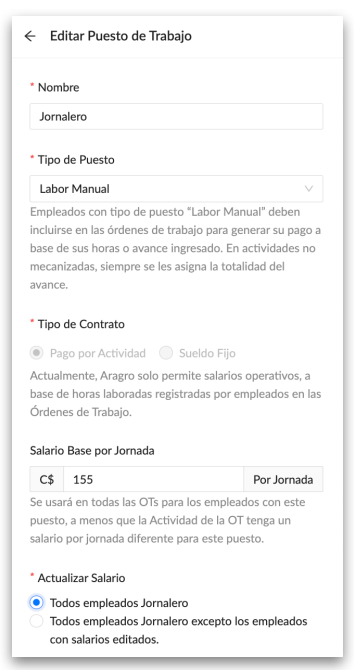
Aragro preloads a list of job positions. Review it and create new positions, if needed, from the **Employees** page: [https://app.aragro.com/employees](https://app.aragro.com/employees). Click **Job positions**.
To create a job position, click **“Create new”** and enter its name, type, and default salary for employees with that position.
> *Note: Only employees whose job position has the type “manual labor” can record progress in a work order.*
## Employees
Human capital is at the heart of every operation, and managing it well is essential to running your farm efficiently. In the Employees module, you can create and manage your farm’s employee database to track attendance and pay in work orders.
There are two ways to create an employee.
### 1) Create new
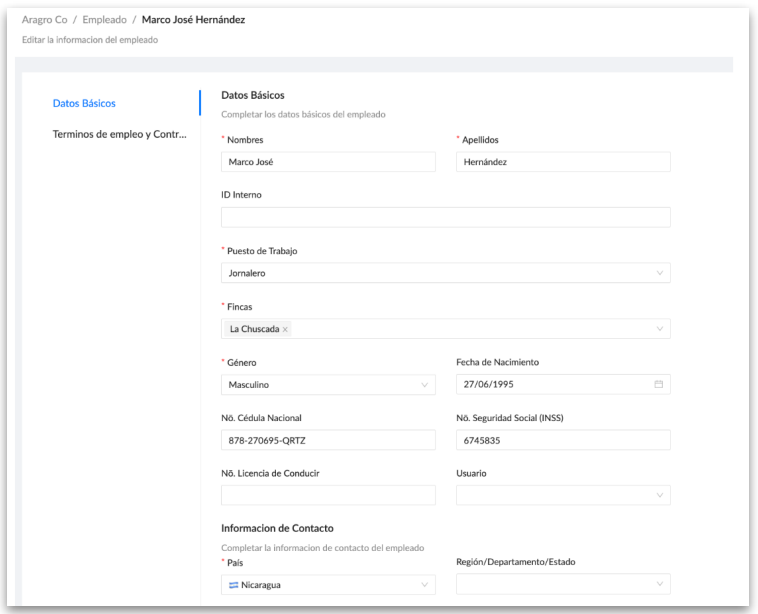
On the **Employees** page, [https://app.aragro.com/employees](https://app.aragro.com/employees), click the blue **“+ Create new”** button.
Complete the basic information form, including the employee’s first and last name, job position, date of birth, and identity card number, among other details.
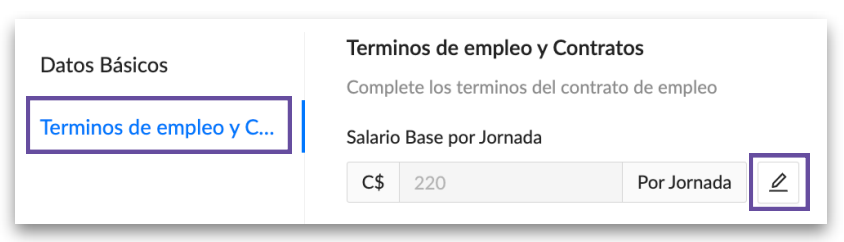
After creating an employee, the default salary for their job position is applied automatically. To change or set a different salary for a specific employee, go to **Employment Terms and Contract**, click the pencil edit icon, enter the employee’s salary, then click **Save**.
### 2) Import
To import employees using an Excel template, see the import manual.
## Employee groups
To save time when creating a work order and make data entry easier, Aragro lets you create employee groups. In a work order, instead of entering employees one by one, you can select a group to add all of its employees.
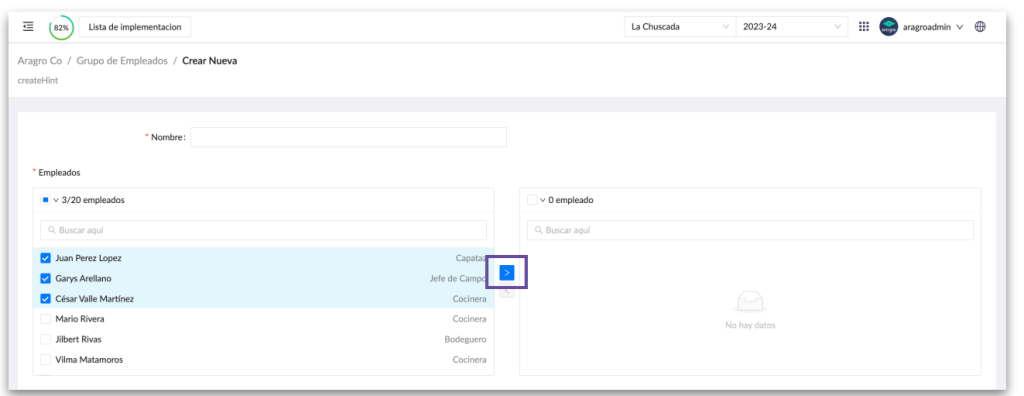
To create an employee group, go to the **Employee groups** page and click the blue **“+ Create new”** button: [https://app.aragro.com/employee-groups](https://app.aragro.com/employee-groups).
Enter a name for the new employee group. Two boxes appear. The box on the left lists all employees on your farm; select the employees you want to add to the group.
To find employees in the list, search by name or job position. After selecting the employees to add, click the blue right arrow (**>**).
Once you have finished, click **Create** to complete the group.
If you have a question this guide does not answer, contact us in the Aragro chat and we will be happy to help.