Create a field
Create fields with their data and crops, or import them using Excel.
Use with AI
External services may not be able to read this preview. Use Copy for AI instead.
To manage and identify the activities, resources, expenses, and production for each field, create all the fields you manage on your farm. If you manage more than one farm, create fields for each farm. There is no limit on field area or on the number of fields. Create each field with its specific information and attributes.
You can record the most important information about each field through a work order.
There are two ways to create fields:
- Create each field individually using the Aragro form.
- Import all your fields at once using the Excel import process.
Open Fields in the Agriculture module from the main menu: https://app.aragro.com/agro/crop-fields.
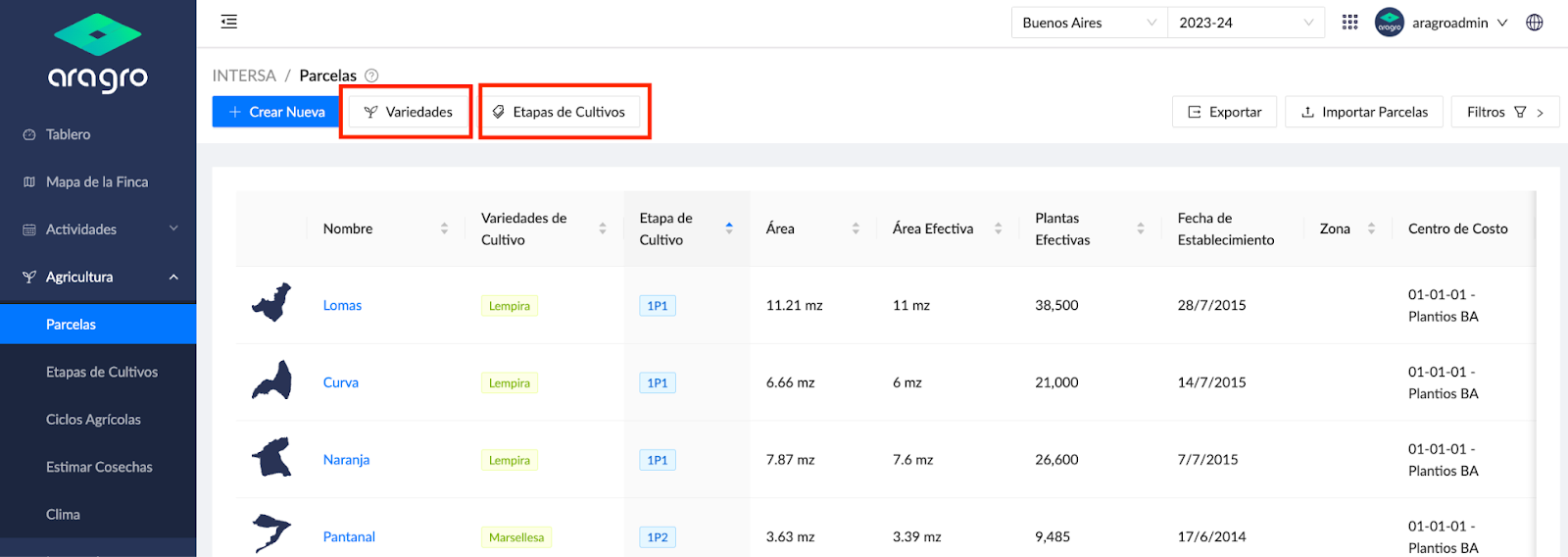
Before creating fields, go to Varieties and Crop stages to review and create varieties for each crop you manage and the crop stages you use.
Create new fields
Section titled “Create new fields”- Click the blue “+ Create new” button.

- Complete the form’s Data, including fields such as Name, Crop, Crop stage, and Zone. You can also import KML/KMZ files or draw the exact location of your field on the map.
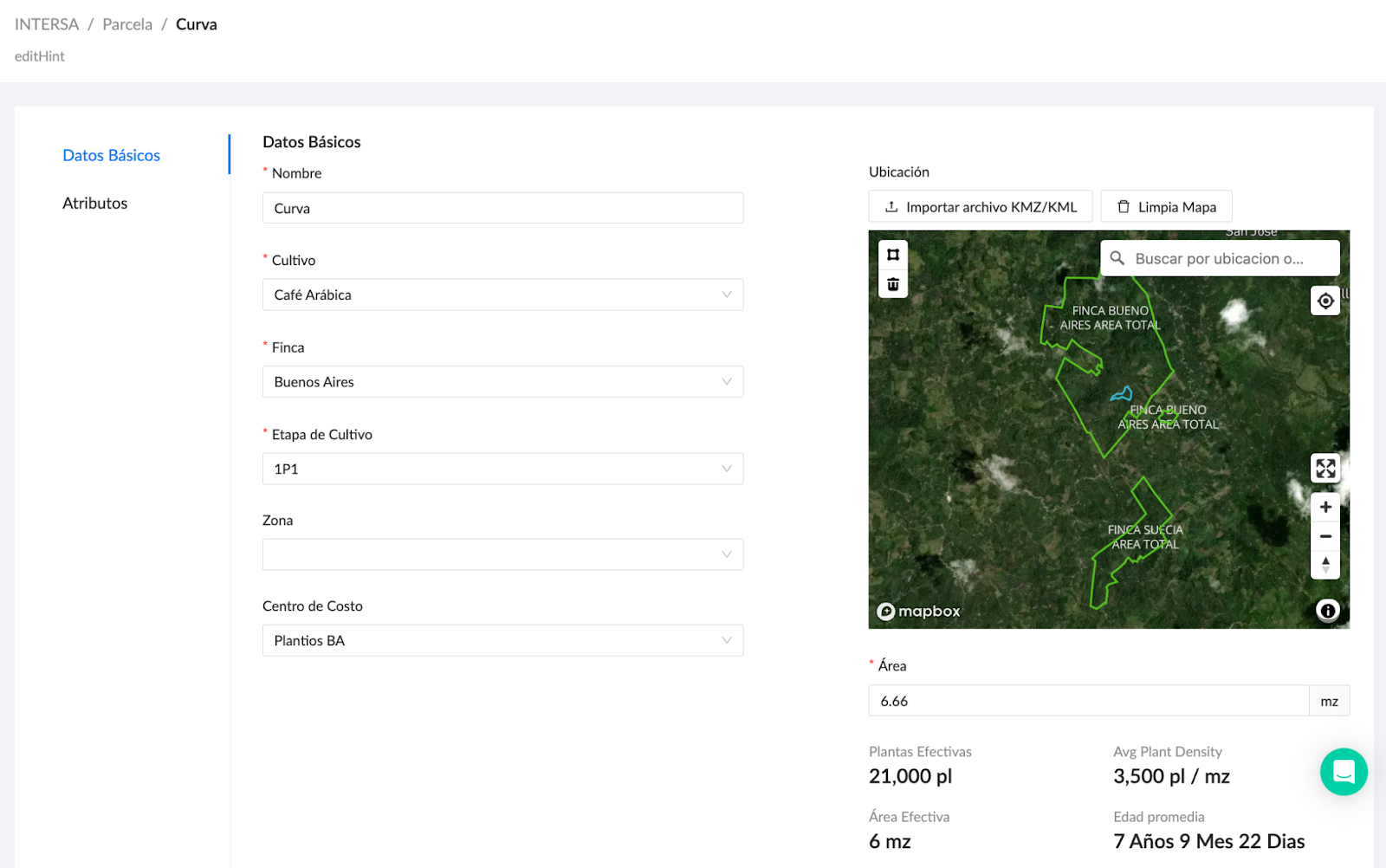
Note: Fields marked with an asterisk (*) contain information required to continue to the next step.
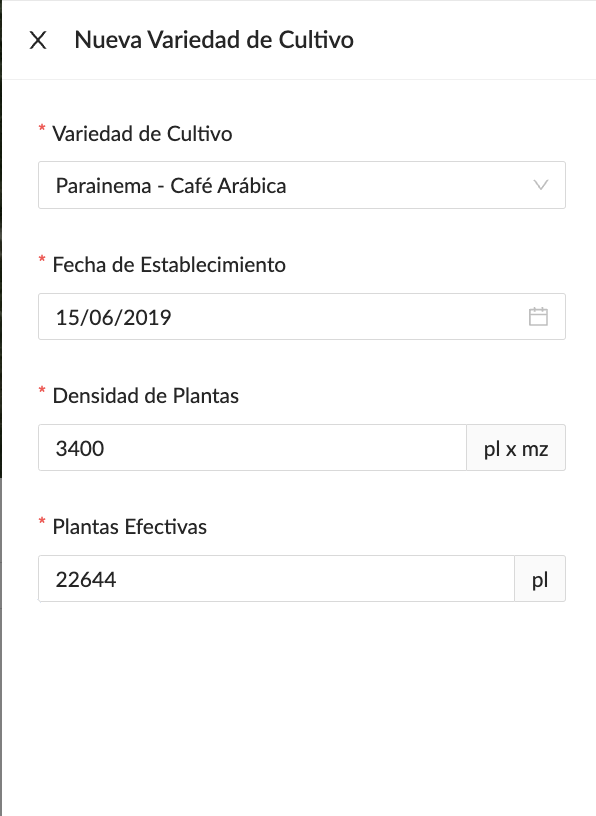
- Add the crop varieties for your field. When you are finished, click Save. For each variety, include the planting date (or an estimate), planting density, and plant inventory (or an estimate).

Import fields
Section titled “Import fields”
To import fields using an Excel template, see the import manual.