Absences
Configure absence reasons and assign absences to employees.
Use with AI
External services may not be able to read this preview. Use Copy for AI instead.
Availability: Absence types and absence records have different availability depending on the features enabled in your account and on your role’s permissions. If the option does not appear, contact Aragro support.
An employee may have a work absence that is paid or deducted from pay. In Aragro, you can record an employee’s absence and specify how it is compensated. Before exploring these options, note the following:
- Absence reasons: Set your company and national policies by creating reasons for work absences and indicating which are paid.
- Absence assignments: Assign a reason and the hours of absence for each employee who missed a work order.
Following that order, first define the absence reasons.
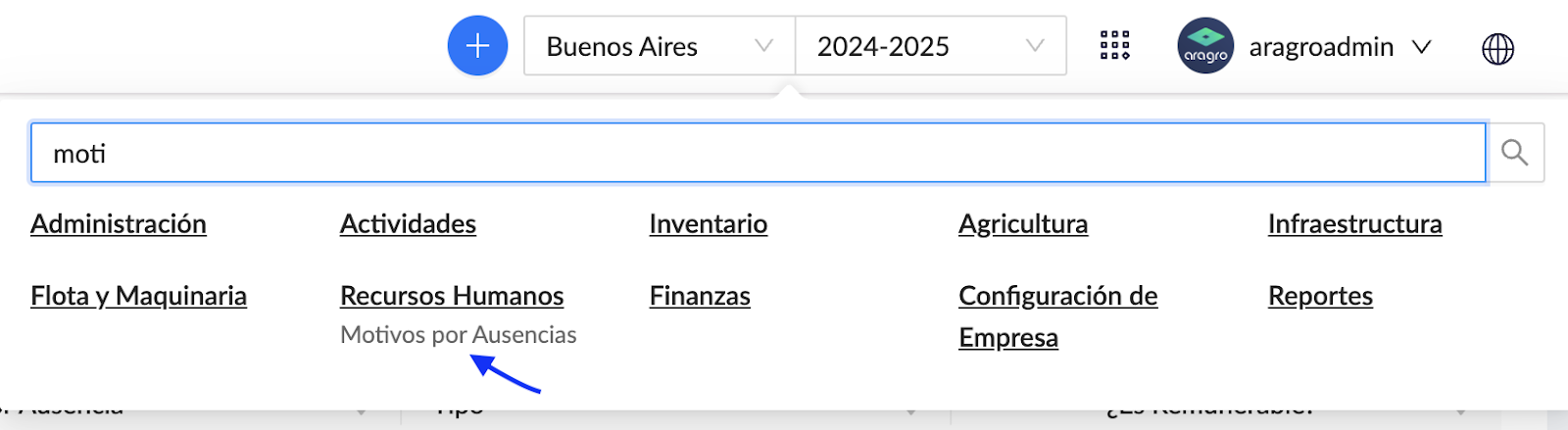
You can use the Absence reasons page in Aragro, or choose “Absence reasons” from the nine-dot main menu to the left of your user profile, as shown below.
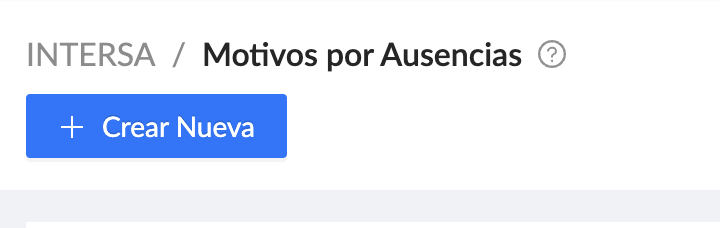
Click “+ Create new.”
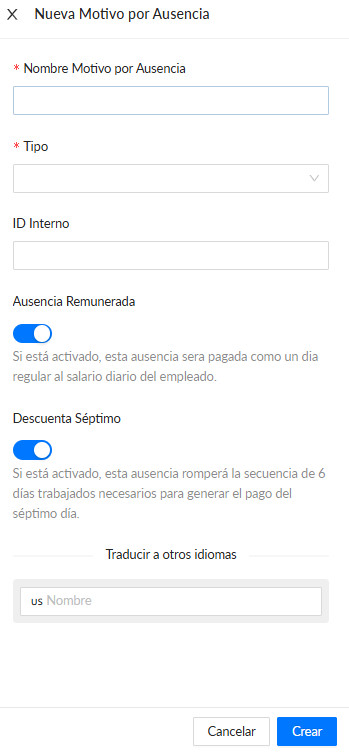
Fill in all the fields for the new absence reason. Specify whether the absence is paid or unpaid. After completing the required fields, click “Create” in the bottom-right corner.
Next, assign the absence to the employee who did not attend the activity scheduled in a work order.
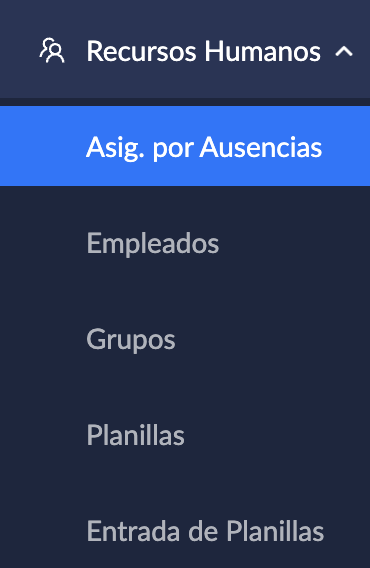
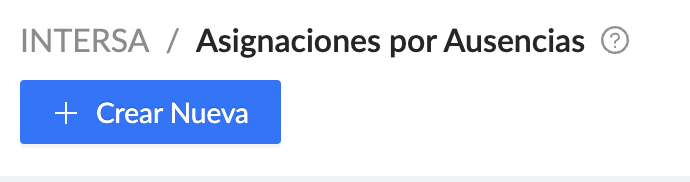
In the left menu, open “Absence assignments” in the Human Resources module, or go directly to Absence assignments in Aragro.
Click “+ Create new.”
Fill in all required fields.
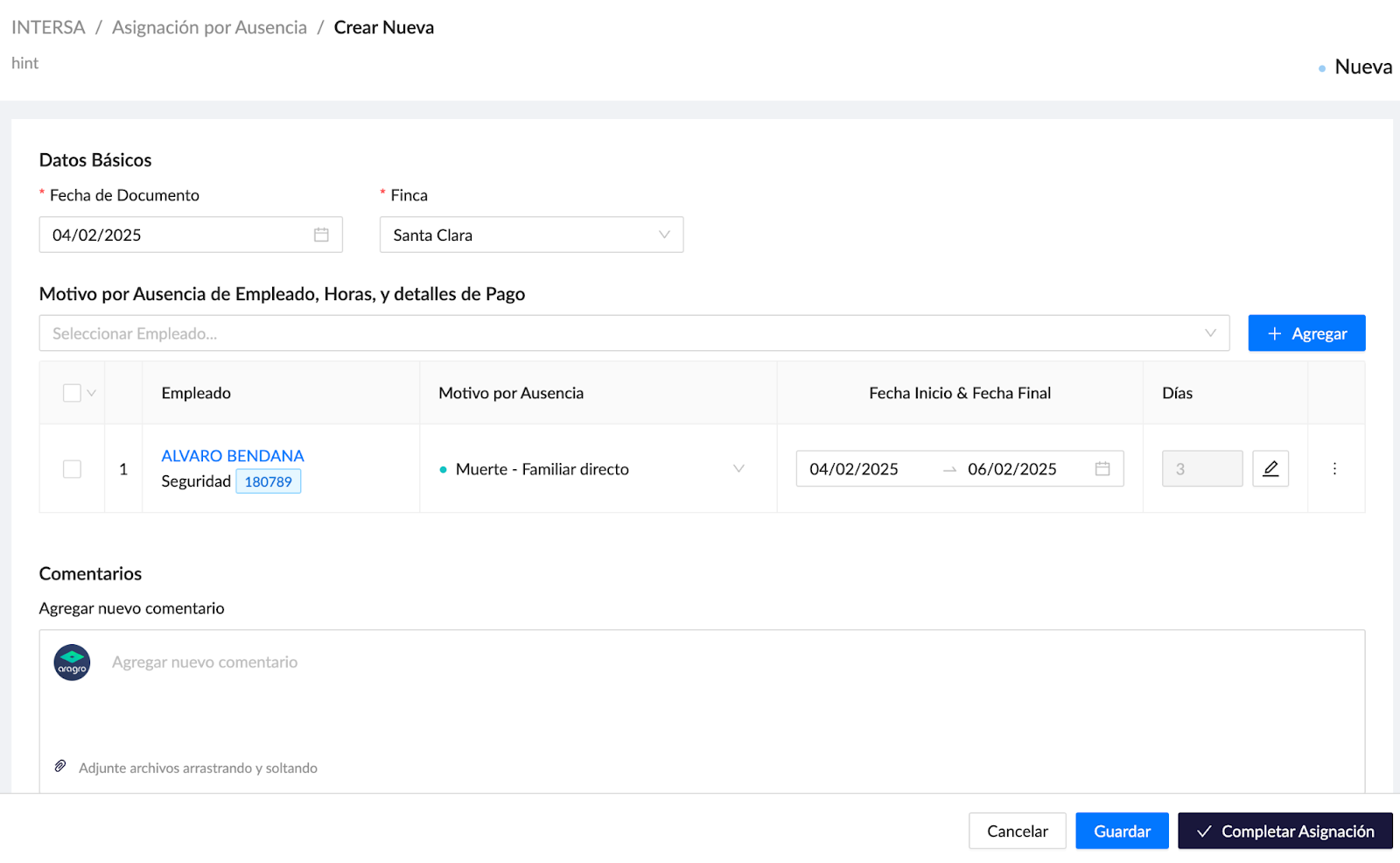
Finally, click “Complete assignment.” When its status is Completed, as indicated by the blue arrow in the image below, you can reverse the assignment if there is an error.
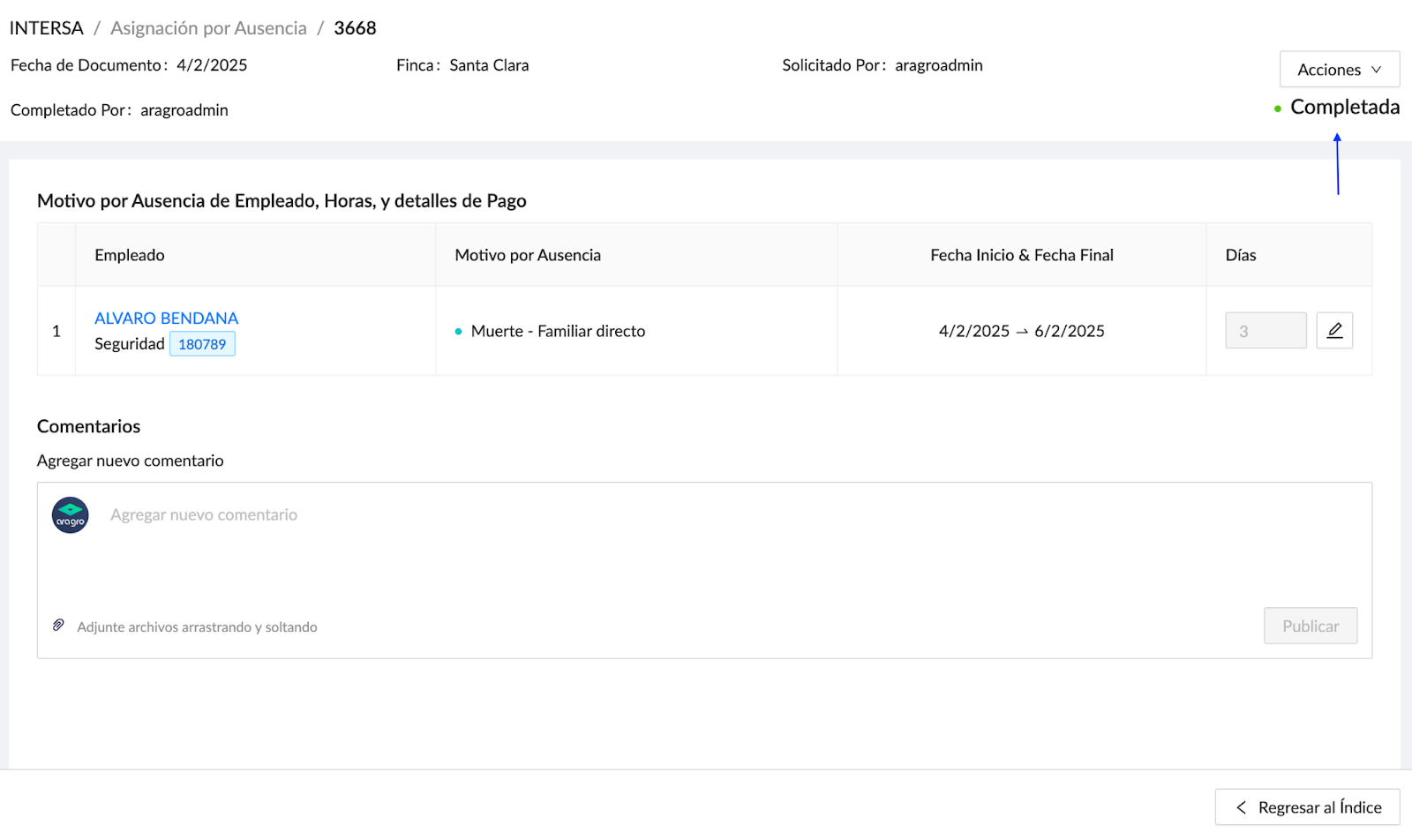
To reverse an absence, use the Actions button. This cancels the assignment so it no longer affects the employee, but the transaction record remains in Aragro.

To see how absences affect the seventh day and how holidays are set up, see Absences, holidays and the seventh day.
If you have a question this guide does not answer, contact us in the Aragro chat and we will be happy to help.